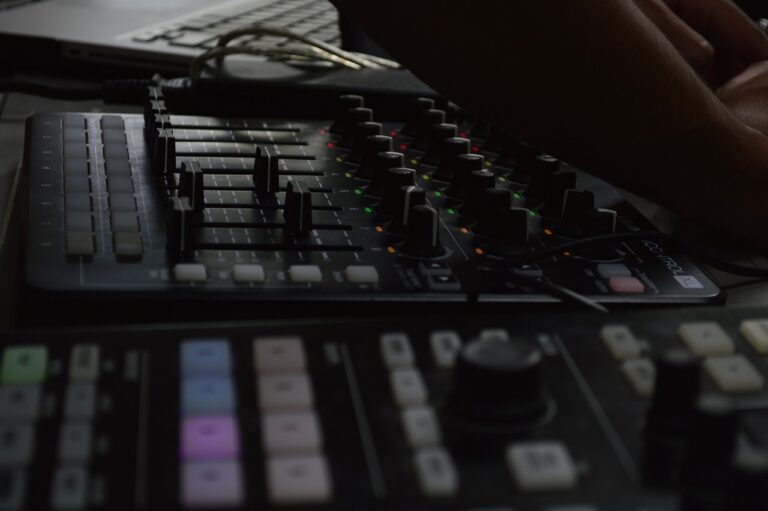

MIDI Mapping Ableton Live for DJ Racks
Mastering MIDI controller mapping in Ableton Live is crucial for dynamic DJ performances. Unlock intuitive control over your tracks and effects with custom assignments, streamlining your live workflow.
Why Map Controllers for Performance?
Directly control effects, volumes, and instruments. Custom assignments enhance creative freedom, transforming your MIDI device into a powerful performance tool.
Mapping Steps for DJ Racks
Connect your controller. In Live, activate MIDI Map Mode (CMD/CTRL + M). Click the desired parameter within an instrument or audio effect rack. Move the corresponding control on your physical MIDI device. Live assigns the mapping. Exit MIDI Map Mode (CMD/CTRL + M). Save your Live Set to preserve all mappings.
Advanced Rack & Macro Control
Leverage Ableton’s Instrument and Audio Effect Racks. Group multiple effects or parameters, then assign a single Macro Control knob to manipulate them. Map these Macros to your MIDI controller for complex, evolving soundscapes with minimal physical interaction.
To map MIDI controllers in Ableton Live for DJ performance racks, enter MIDI Map Mode (CMD/CTRL + M), select a rack parameter, move a physical controller element, then exit Map Mode and save your Live Set.